
COCO CHARA HOW TO PLAY
Build your own 3D room (ROOM) with COCO CHARA.
COCO CHARA is an app for making 3D creations such as characters and furniture. Put your creations in a room, send a link, and your friends can come and visit. Here is how, step by step.
- Make it in COCO CHARA3D creations like characters and furniture, and the room itself.
- Place it in a ROOMPut your creations in a room (a ROOM) and save it.
- Invite with a linkAnyone who opens the link steps into your room from their browser.
A ROOM is a 3D place that holds the things you made. Let us start by looking at a finished one.
01Visit a ROOM
Goal: walk around a finished ROOM.
You do not need to build anything yet. Start by stepping into a ROOM someone has already made, and get a feel for what you will be creating.
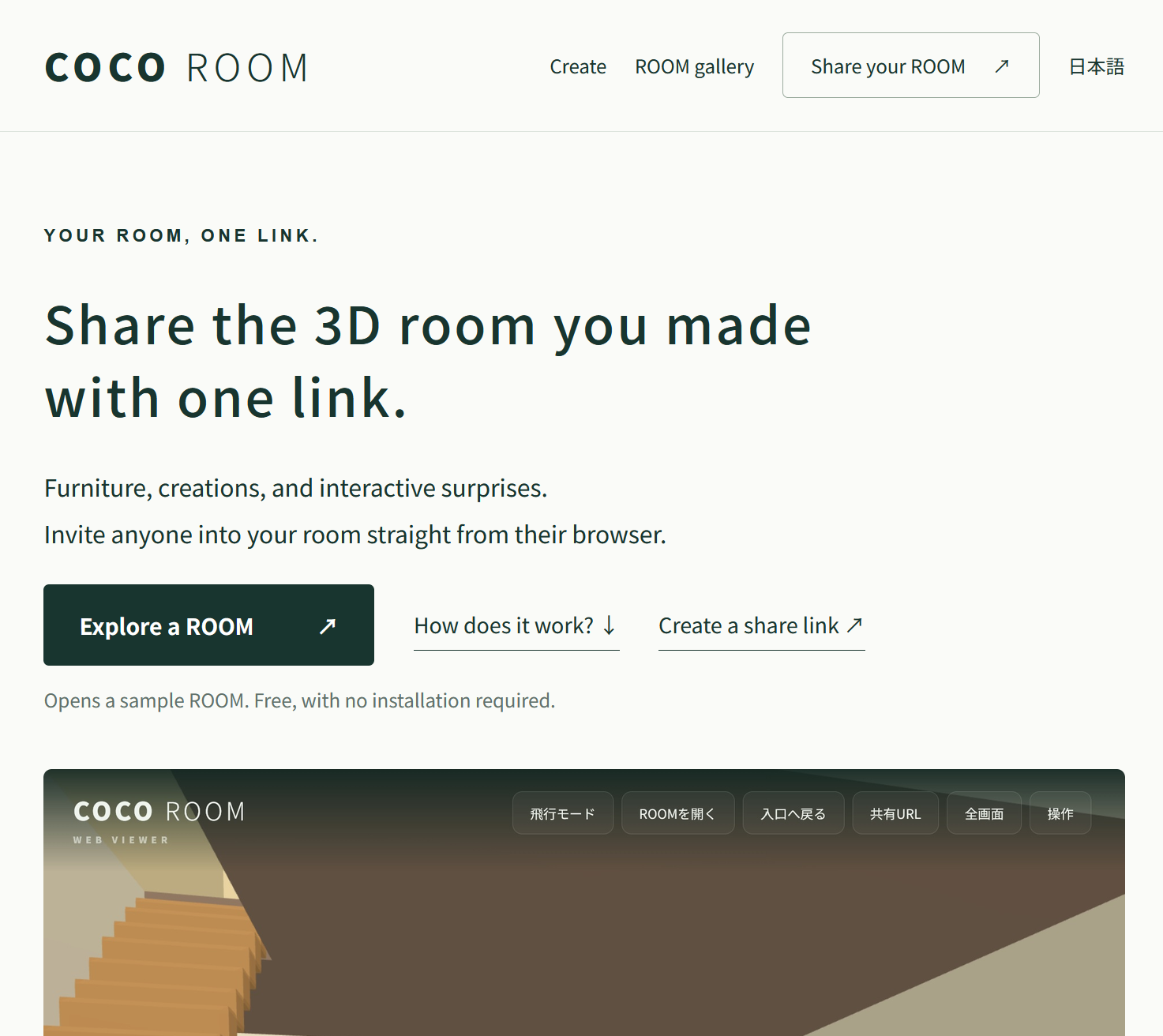
- Open cocoroom.link in your browser. There is nothing to install.
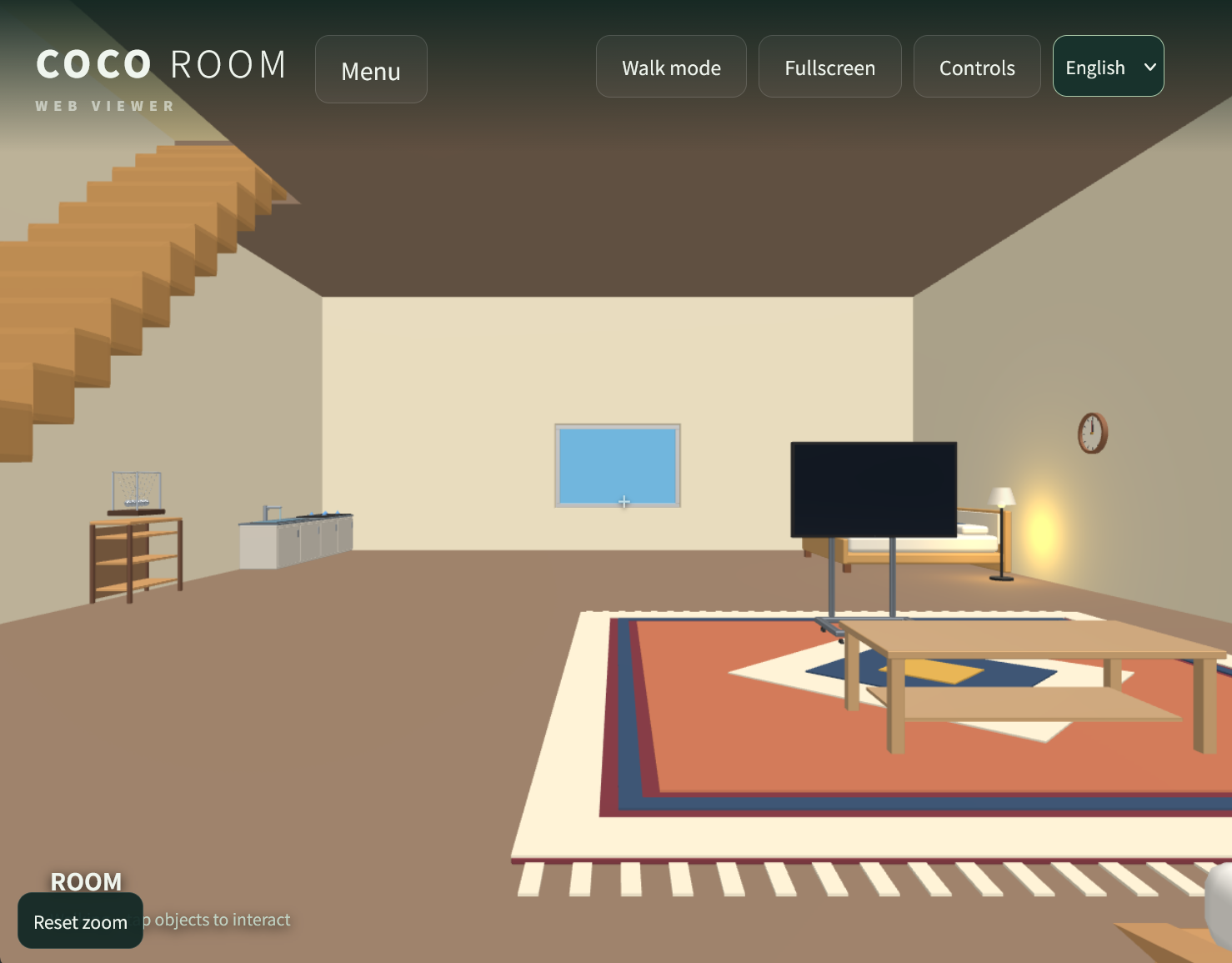
- Press Explore a ROOM. A sample ROOM opens and you are standing inside it.
- A ROOM link sent by a friend works the same way: just tap it.

02Learn the controls
Goal: walk, look around, and fly.
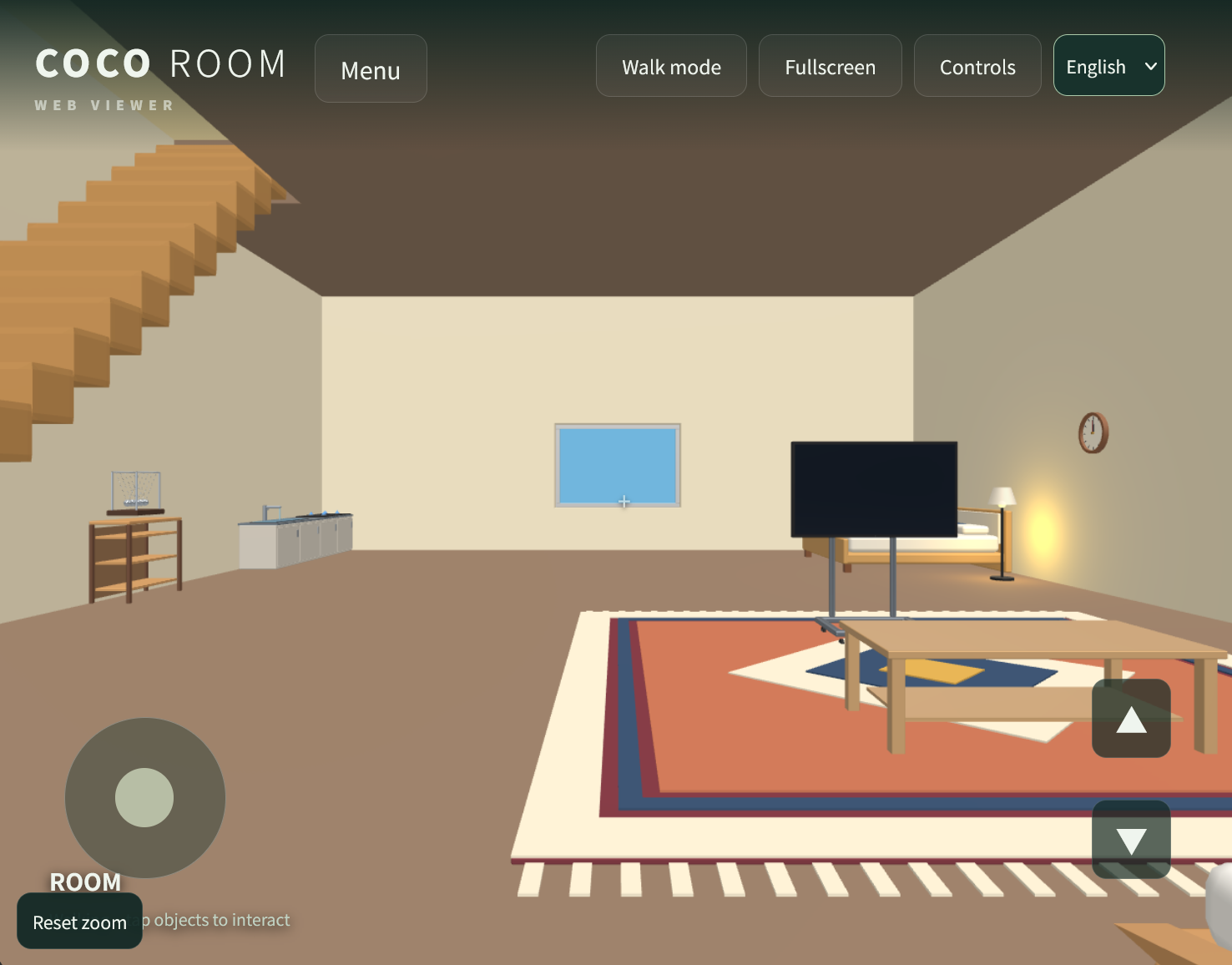
On a phone
| Move | Drag the stick at the bottom left. |
|---|---|
| Look around | Drag an empty part of the screen. |
| Jump | Tap ▲. |
| Fly | Tap ▲ twice quickly. Hold ▲ to rise and ▼ to descend. Tap ▼ twice quickly to walk again. |
| Touch things | Tap an object, following the hint shown on screen. |
On a PC
| Move | W A S D |
|---|---|
| Look around | Drag with the right mouse button. |
| Jump | Space |
| Fly | Press Space twice quickly. Hold Space to rise and Left Shift to descend. |
The buttons along the top help too. Menu shows the ROOM list and lets you open another ROOM. Walk mode / Fly mode switches between walking and flying, and Fullscreen enlarges the view. Controls shows a quick guide, and the "back to entrance" button there returns you to the spot where you first stood (the starting point). Handy if you get lost. The menu at the far right switches the language (Japanese / English).
03Build your own ROOM
Goal: make a room and put one thing in it.
We recommend COCO CHARA for building. You make the room and the things inside it in one app, then save the result as a ROOM file.
There are three stages: make the object, export it as GLB, then place it in the ROOM.
A. Make the things to put in it (Script Mode)
For things that go in a ROOM, we recommend having an AI write a script for the object, then pasting it in. Any chat AI, such as ChatGPT, will do.
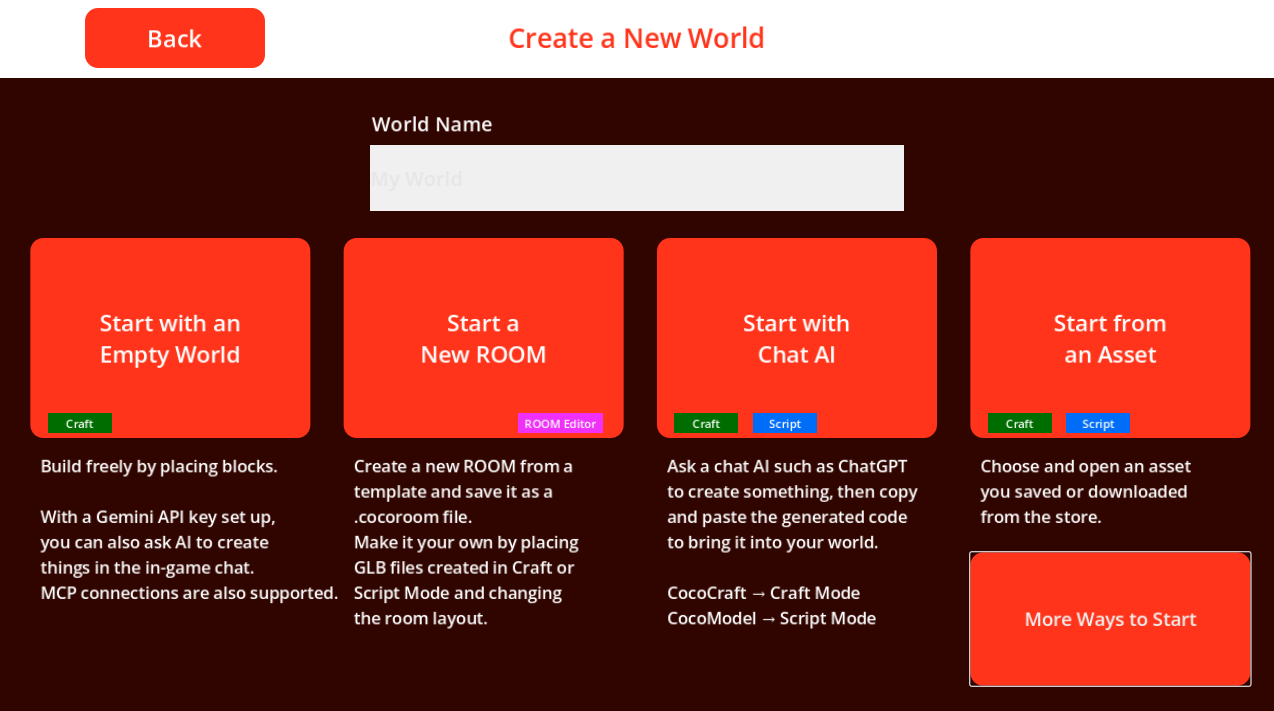
- On the top menu, press Start a New Game, then choose Start with Chat AI.
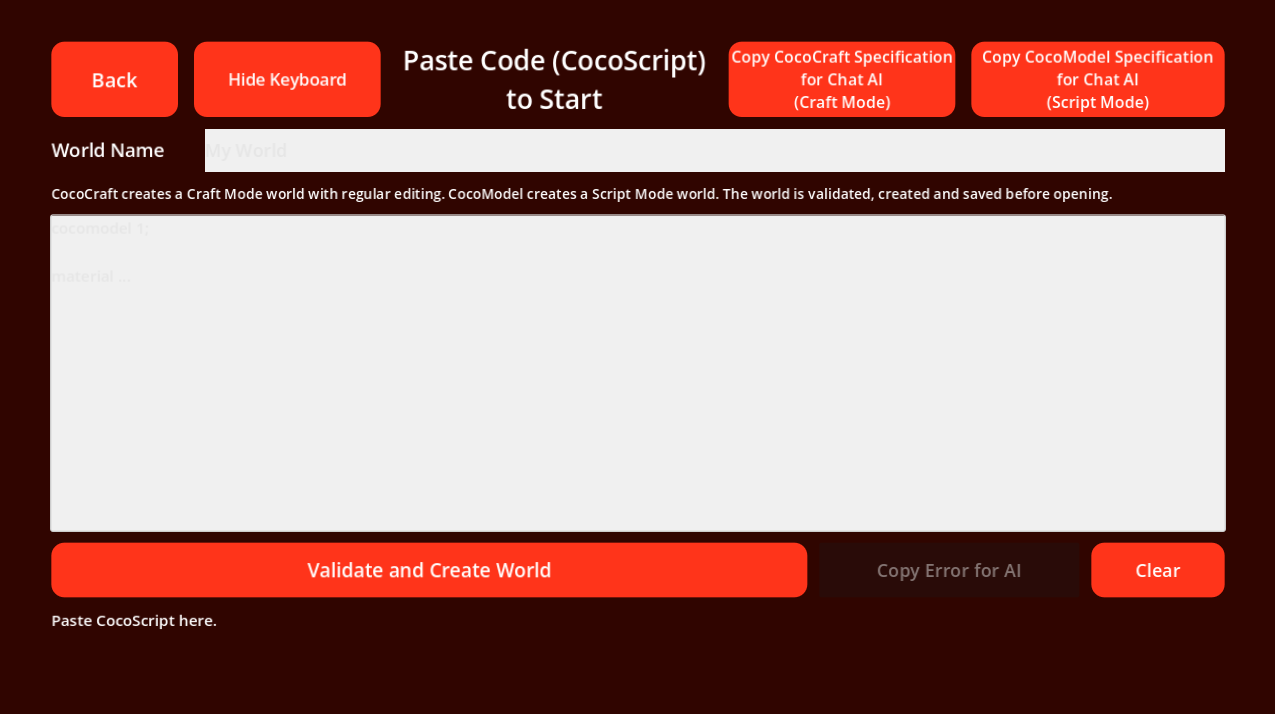
- On the "Paste Code (CocoScript) to Start" screen, press Copy CocoModel Specification for Chat AI (Script Mode).
- Paste the copied specification into your chat AI and ask for what you want, such as "make me a chair."
- Copy the whole code the AI returns, paste it into the large box, and press Validate and Create World. The object opens in Script Mode.
B. Export as GLB
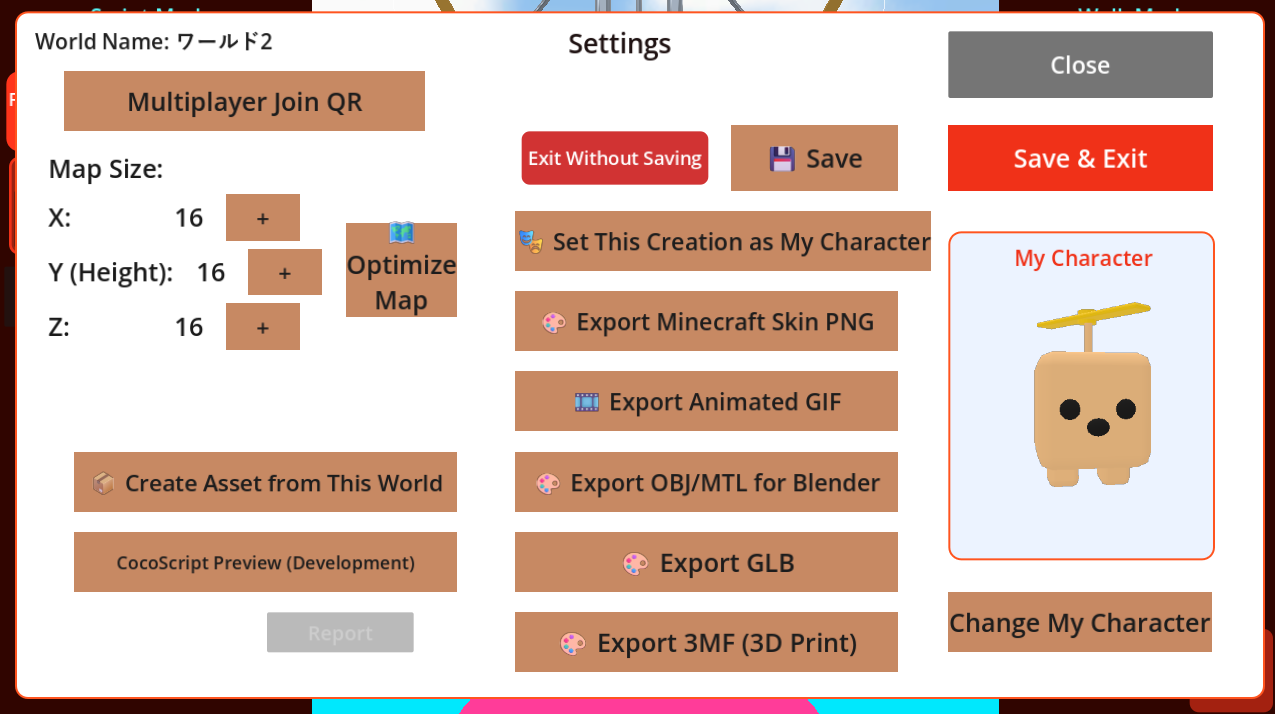
When the object is ready, open Settings and press Export GLB to save it as a GLB file. GLB files you already have can be placed in a ROOM as they are.
C. Place it in the ROOM Editor
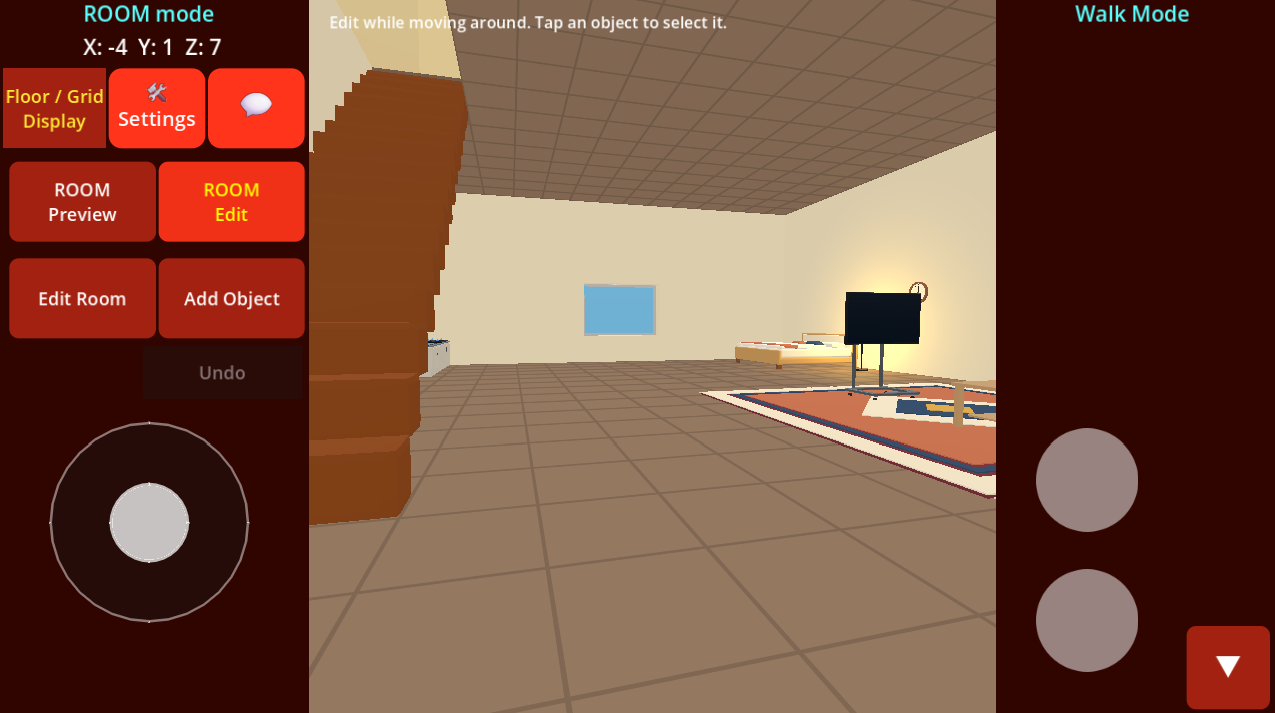
- On the top menu, press Start a New Game, then choose Start a New ROOM. A basic room with a floor, four walls and a ceiling appears, and you are standing inside it (ROOM mode).
- Press Add Object in the left-hand buttons and pick the GLB file you just exported from your files.
- The object appears at the center of the floor, on the floor you are standing on.
- To change its size, long-press the object to open its menu and choose Resize. Adjust it with the Bigger and Smaller buttons.
D. Shape the room
- Long-press the floor to add an interior wall or make a hole.
- Long-press the ceiling to add a floor above. Long-press the floor to add a basement.
- Long-press a wall to place a door or a window.
- Long-press an object to move, rotate, resize or delete it. Set Up Interactions makes it react when tapped: play an animation, light up, or move.
Long-press is the main way to edit the room. If you are not sure what to do next, try a long-press.
04Build it with friends
Goal: build the same ROOM together with your friends.
COCO CHARA is made for building with other people. On Android you can do it entirely from your phone, with text chat built into the app.
On both Windows and Android you can be the host (the person who starts the session) or a participant, in any combination.
- To play over the internet, sign in once with Google.
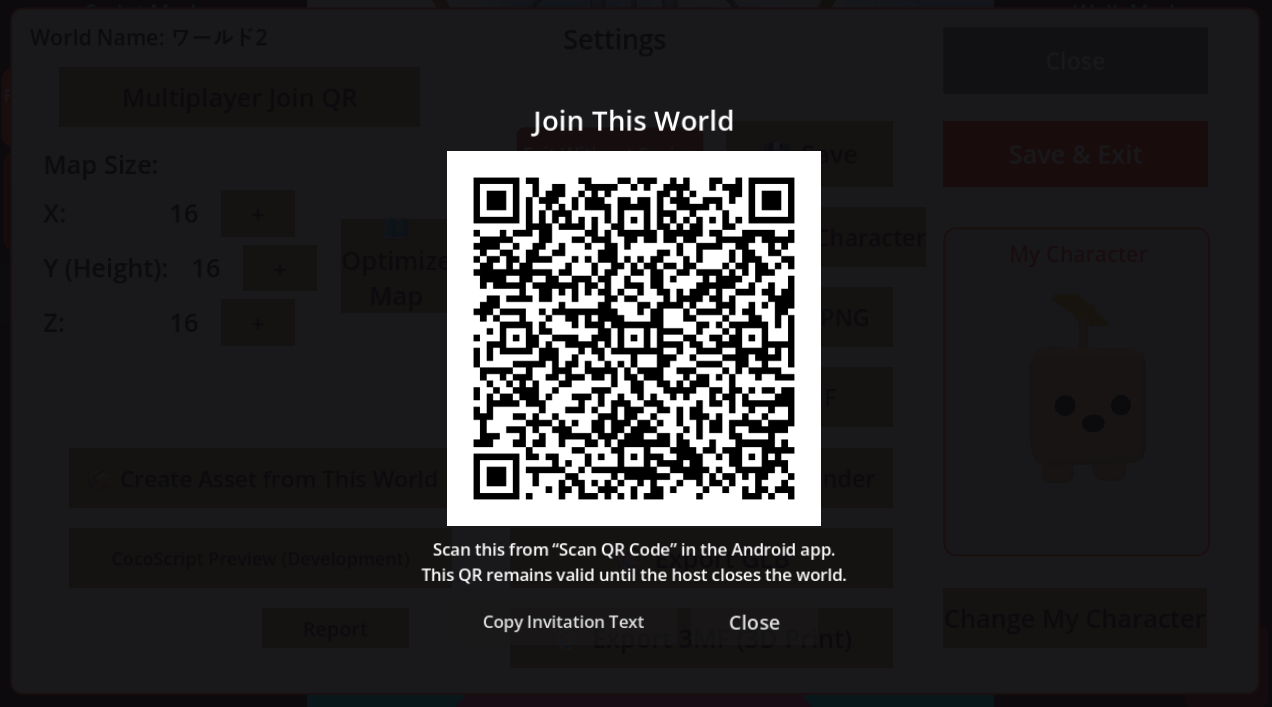
- As the host, open Settings and press Multiplayer Join QR to show a QR code. Copy Invitation Text lets you send the invitation as a message instead.
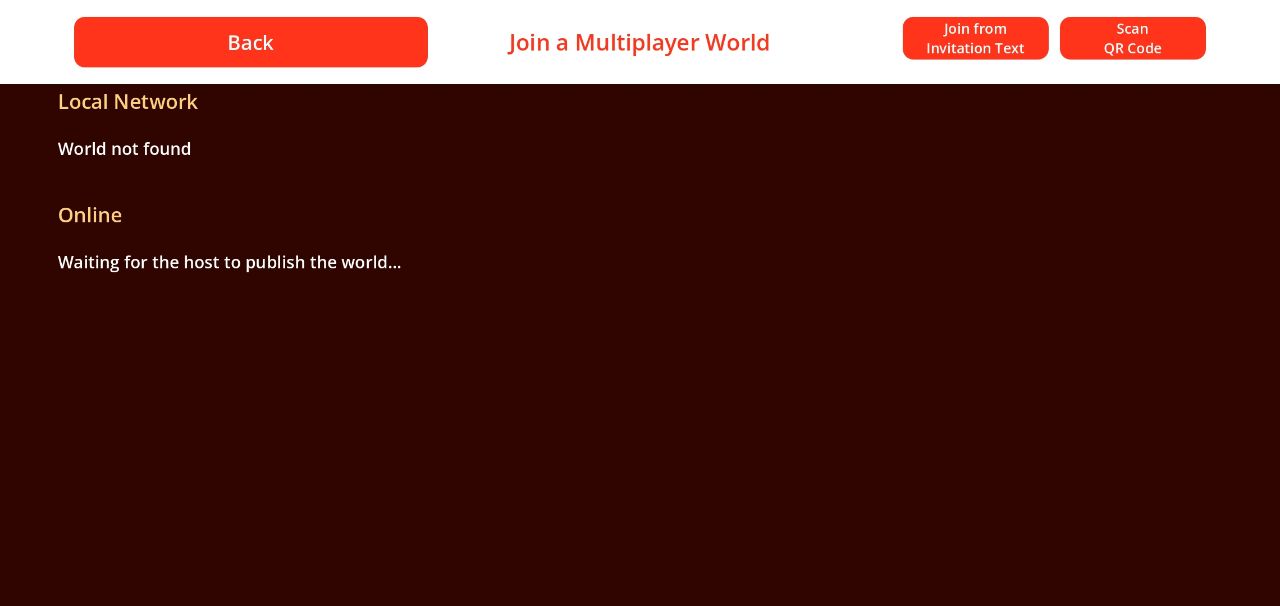
- A participant opens Join a Multiplayer World on the top menu.
- With a QR code: on Android, use Scan QR Code at the top right to scan the host's QR code.
- With invitation text: on Windows or Android, paste the invitation text you received into Join from Invitation Text at the top right.
- Build together. Edits appear on everyone's screen, and you can chat as you go.
06Post it so others can find it
Goal: let people who use COCO ROOM discover your ROOM.
Your ROOM does not have to stay with the people you sent the link to. A posted ROOM is listed in ROOM gallery on the official site (the ROOM list in COCO ROOM), where anyone can find it.
- First, create a share link as described in step 05.
- Open Share your ROOM on cocoroom.link and sign in with Google.
- Fill in the details:
- The share URL (the link from step 05)
- A title and an author name (the author name can differ from your Google account name)
- A comment (up to 1,500 characters)
- A screenshot (a wide image works best; JPEG, PNG or WebP, up to 4 MB)
- Review it, tick the consent box, and publish.
?Troubleshooting
Do I need an account?
Not to visit ROOMs or to build on your own. A Google sign-in is only needed for multiplayer over the internet and for publishing to the store. Multiplayer on the same local network does not need one.
Does my work disappear if I close the app?
A saved ROOM stays on your device. Save or export before you quit. In a shared session, the host ends the session when they leave.
A ROOM is slow to open.
Large ROOMs take longer the first time. Opening the same ROOM again is faster.
The text in a ROOM is in Japanese.
The app's menus can be switched to English in Settings, but the text inside a ROOM is written by its creator. Language switching inside ROOMs is planned for later.
I forgot a ROOM's password.
The password cannot be recovered. Ask the creator to send it again.